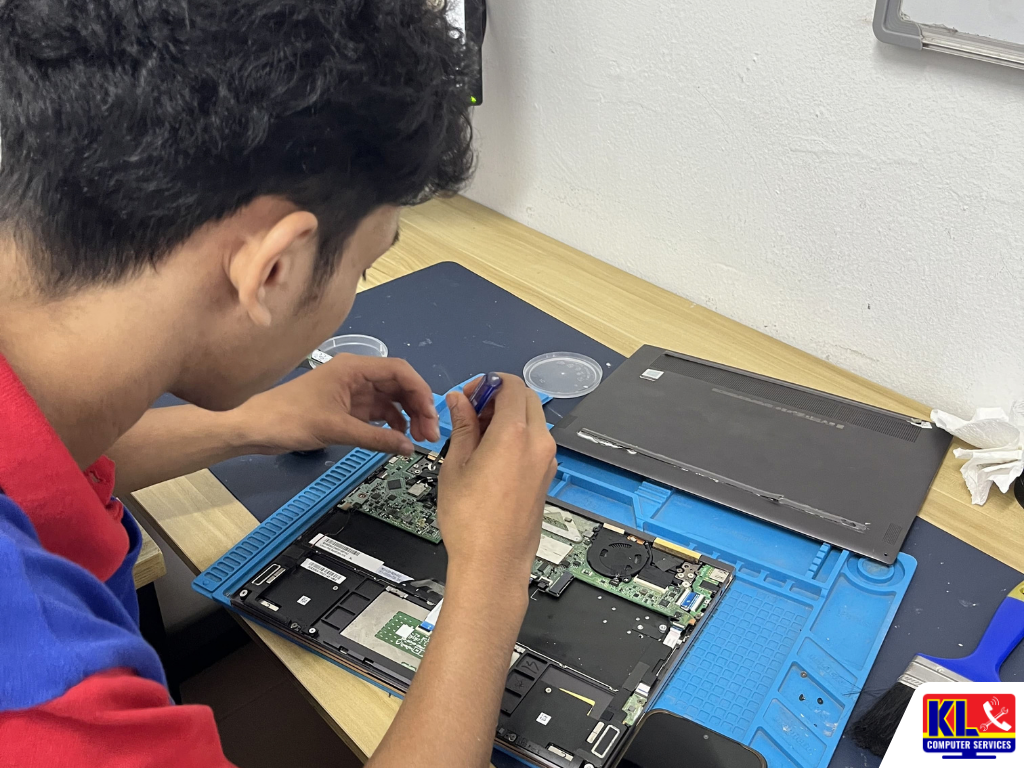
Laptop Speaker Crackling or No Sound? Find the Cause First
You open a video and the sound comes out fuzzy, buzzing or crackling. Or worse, there’s no sound at all, even with the volume turned up.
If you’re searching for laptop speaker crackling, laptop no sound or laptop speaker repair KL, you’re not alone. Audio problems are a regular repair at our branches, especially on laptops used daily for online meetings, classes and streaming.
The good news is that many cases are caused by settings or drivers, which you can check yourself in a few minutes. When the problem is physical, like a damaged speaker or a loose connector inside the laptop, our technicians can usually identify the exact cause on the same day you bring it in.
Test With Headphones First
If headphones sound clean but the speakers don’t, the fault is most likely in the speakers themselves.
Drivers Are a Common Culprit
A Windows update can clash with your audio driver and cause crackling or silence overnight.
Lower the Volume for Now
Playing loud audio through a crackling speaker can tear the speaker cone further.
Honest Assessment First
We diagnose before we repair, so you know whether it’s a quick fix or a parts job before any cost begins.
⚡ No sound right now? Click the speaker icon on your taskbar, make sure it isn’t muted, and check that the output device is set to your laptop’s built-in speakers, not a Bluetooth device or a monitor.
Common Symptoms and What They Mean
How your laptop’s audio fails tells us a lot about where the problem is.
Crackling at High Volume
Often a worn or damaged speaker cone that can no longer handle loud audio cleanly.
Crackling at Any Volume
Usually a driver, audio settings or loose cable issue rather than the speaker itself.
One Side Silent
Points to one failed speaker or a disconnected wire on that side.
No Sound, Headphones Work
Speakers or their connector are faulty, or the headphone jack sensor is stuck.
No Sound Anywhere
Likely a driver problem, or in some cases a fault in the audio chip on the motherboard.
Common Causes of Laptop Speaker Problems
When a laptop speaker is crackling or has no sound, the cause usually falls into one of these categories.
Outdated or faulty audio drivers. The most common software cause. A Windows update can replace or conflict with your laptop’s audio driver (often Realtek or Conexant), leading to crackling, distortion or complete silence.
Audio enhancements and sound format settings. Built-in sound effects, bass boost or an unsupported sample rate can make clean audio sound distorted. Turning off enhancements often fixes crackling straight away.
Wrong output device. Sound may be going to a Bluetooth headset, an HDMI monitor or a disconnected device instead of the built-in speakers.
Blown or worn speakers. Laptop speakers are small and fragile. Years of loud playback, or a drop, can tear the speaker cone and cause a constant buzz or rattle.
Loose or damaged speaker cable. The thin cable connecting the speakers to the motherboard can come loose after a knock, a hinge repair or a previous repair, causing crackling that comes and goes, or no sound on one side.
Stuck headphone jack sensor. If the jack is dirty or damaged, the laptop may think headphones are still plugged in and mute the speakers.
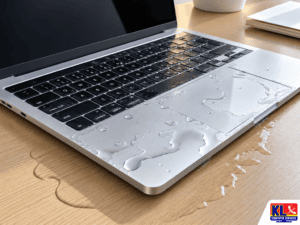
Liquid damage or dust. Spills near the keyboard or speaker grilles can corrode the speakers and connectors. If your laptop has had a spill, see our laptop water damage repair service.
Audio chip or motherboard fault. Less common but more serious. When there’s no sound from speakers or headphones, and drivers have been reinstalled, the audio circuit on the motherboard may need repair.
What to Check (and Avoid) Before You Bring It In
These safe checks solve many laptop sound problems at home. If none of them help, the cause is likely inside the laptop.
- ✓Do check the volume isn’t muted and the output device is set to your laptop’s speakers.
- ✓Do plug in headphones to see if the problem is the speakers or the audio system as a whole.
- ✓Do turn off audio enhancements in Windows Sound settings and try the 16 bit, 44100 Hz format.
- ✓Do run the Windows audio troubleshooter, then update or reinstall the audio driver from Device Manager.
- ✓Don’t keep playing audio at full volume through a crackling speaker, as it can make the damage worse.
- ✓Don’t poke into the speaker grilles or headphone jack with sharp objects, or open the laptop yourself without the right tools.
When It’s Time for a Repair
Bring your laptop in for a check if any of these apply:
- ✓Headphones sound clean, but the speakers still crackle or stay silent after the checks above.
- ✓The crackling started after a drop, a spill or a previous repair.
- ✓Only one speaker works, or the sound cuts in and out when you move the laptop.
- ✓There’s no sound from speakers or headphones, even after reinstalling the audio driver.
Speaker faults often show up alongside other wear and tear, so we can check the rest of the laptop during the same visit. See our full laptop repair services for screen, keyboard, battery and motherboard repairs.
Diagnosis & Repair Turnaround
Diagnosis always comes first. We find out whether the problem is software, the speakers, the cable or the motherboard, and explain your options before any repair work starts.
| Service | What’s Included | Est. Turnaround |
|---|---|---|
| Audio Diagnosis | Full check of drivers, settings, speakers, cables and audio jack, RM65 diagnostic fee | Same day |
| Driver & Software Fix | Clean audio driver reinstall and sound settings correction | Same day |
| Speaker Cable Reseat / Repair | Opening the laptop, cleaning and reconnecting or repairing the speaker connector | Same day |
| Speaker Replacement | Damaged speaker set swapped with a compatible part for your model | Same day to 3 days, depending on parts |
| Audio Jack / Motherboard Repair | Headphone jack replacement or audio circuit repair on the motherboard | 3 to 7 days, depending on parts |
Why Customers Choose Us
When your laptop speaker is crackling or has no sound, you want someone who finds the real cause, not someone who replaces parts by guessing.
- ✓Same-Day Diagnosis. Walk in without an appointment and know what’s wrong with your laptop’s audio before you leave.
- ✓1,200+ Five-Star Google Reviews. Verified, public feedback from real customers across our branches.
- ✓One of KL’s Established Independent Repair Centres. Serving Kuala Lumpur for 12 years.
- ✓Software Before Hardware. If a driver or settings fix solves it, we tell you, instead of replacing speakers you don’t need.
- ✓Warranty on All Repairs. Every job backed by a warranty on labour and parts where applicable.
Visit Any of Our Branches
Drop in for a walk-in assessment, no appointment needed, at whichever branch is closest to you.
📍 Setapak (HQ)
KL Computer Services Setapak
First Floor, 36-1, Jalan 2/23A, Taman Danau Kota, 53300 Wilayah Persekutuan Kuala Lumpur
Mon-Fri: 9am-7.30pm | Sat-Sun: 9am-7pm
📍 Cheras Branch
KL Laptop Shop Cheras Pandan Jaya
First Floor, 34-1A, Jalan Pandan 2/1, Pandan Jaya, 55100 Kuala Lumpur
Mon-Fri: 9am-7pm | Sat: 10am-7pm | Sun: Closed
📍 Ampang Branch
KL Computer Shop Ampang Pandan Indah
First Floor, 13M Jalan Pandan Indah 4/2 Ampang, 55100 Wilayah Persekutuan Kuala Lumpur
Mon-Fri: 9am-7.30pm | Sat-Sun: 10am-7pm
📍 Jalan Klang Lama Branch
KL Computer Services Jalan Klang Lama
First Floor, 2-1 Jalan Indrahana 1, Off Jalan Kuchai Lama, 58200 Wilayah Persekutuan Kuala Lumpur
Mon-Fri: 9am-7.30pm | Sat-Sun: 10am-7pm
If it’s a business or office laptop with audio problems affecting meetings, our sister site KL Computer also handles onsite computer and laptop repair across KL and the Klang Valley.
Prefer to find a walk-in repair shop near your area? Browse our branch repair services on klcomputerservices.com.my.
Frequently Asked Questions
Written by the KL Computer Services team, based on 12 years of hands-on laptop and desktop repair experience across Kuala Lumpur and Selangor. Read more on our About Us page or see what customers say on our Facebook page.