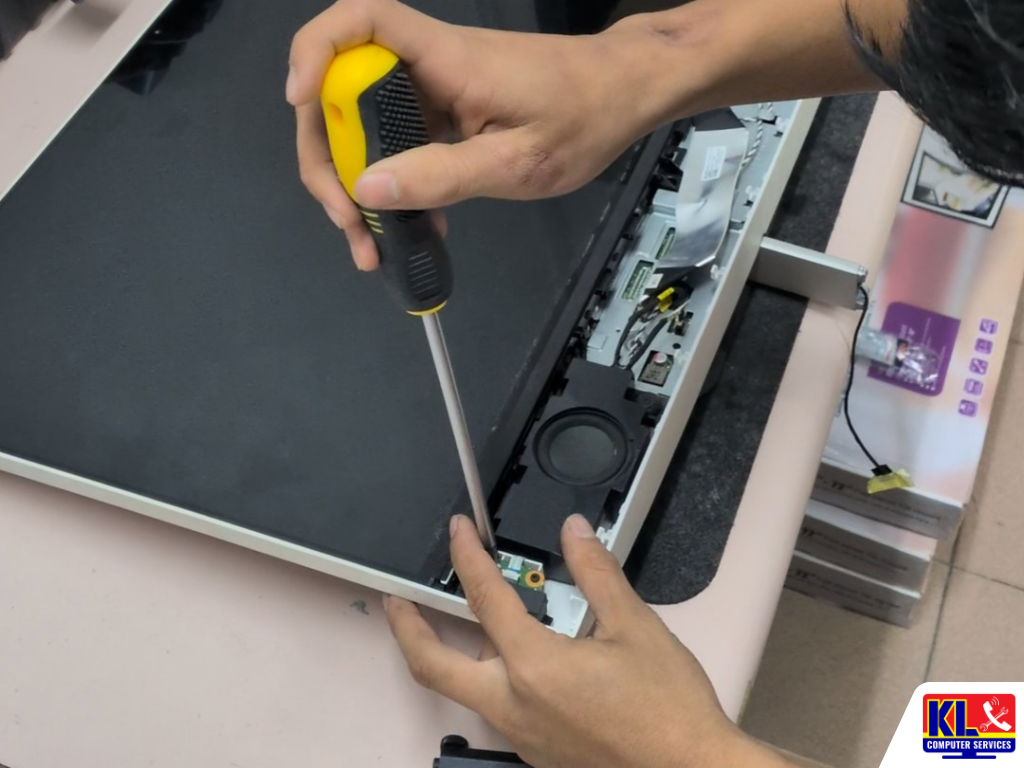
All-in-One PC Running Slow or Hot? Why AIOs Are Different
Your all-in-one PC used to start up quickly. Now it takes minutes to boot, apps freeze, the fan won’t stop running and the back of the screen feels hot to the touch.
If you’re searching for all-in-one PC running slow, all-in-one PC overheating or AIO PC repair KL, you’re not alone. All-in-ones from HP, Dell, Lenovo, Asus and Acer are common in Malaysian homes, home offices and reception counters, and slow or hot AIOs are a regular repair at our branches.
All-in-one PCs are built differently from a normal desktop. The processor, storage, memory and cooling are packed behind the screen, often using laptop-class parts with a small fan and limited airflow. That compact design is why they get slower and hotter with age, and also why they need a bit more care to open and fix properly. The good news is that most cases are fixable, and many older AIOs feel like new again after a cleaning and an SSD upgrade.
Most Older AIOs Use a Hard Disk
Many budget all-in-ones shipped with slow 5400 RPM hard disks. This is the number one cause of slow boot and lag we see.
Heat Builds Up Behind the Screen
A small fan, tight space and dust buildup mean AIOs heat up faster than tower desktops, especially in Malaysian weather.
Check the Vents First
AIOs pushed flat against a wall or covered by papers can’t breathe. Leave space behind and above the vents.
Honest Assessment First
We diagnose before we repair, so you know whether it’s a cleanup, an upgrade or a parts job before any cost begins.
⚡ Slow right now? Open Task Manager (Ctrl + Shift + Esc) and look at the Disk column. If it sits at or near 100% while you’re barely doing anything, a slow or failing hard disk is the most likely cause.
Common Symptoms and What They Mean
How your all-in-one PC slows down or overheats tells us a lot about where the problem is.
Slow Boot, Disk at 100%
Usually an old hard disk struggling with Windows, or a hard disk that is starting to fail.
Fan Loud All the Time
Dust in the fan and heatsink, or dried thermal paste, making the cooling work harder.
Hot Screen or Back Panel
Blocked vents or poor airflow behind the screen. Heat can also shorten the life of the display.
Freezes or Shuts Down by Itself
Overheating, a failing power adapter, or a failing storage drive.
Slow With Many Tabs Open
Not enough RAM for today’s apps and browsers, especially on AIOs with 4GB.
Clicking or Grinding Sound
A hard disk with a mechanical fault. Back up your files immediately.
Common Causes of a Slow or Overheating All-in-One PC
When an all-in-one PC is running slow or hot, the cause usually falls into one of these categories.
Old or slow hard disk. The most common cause of a slow all-in-one. Many AIOs, including popular Dell Inspiron and HP Pavilion models, came with 5400 RPM hard disks to keep costs down. They struggle with Windows 10 and Windows 11 updates, causing long boot times and lag. Upgrading to an SSD is usually the single biggest speed improvement.
Failing storage drive. A hard disk that is wearing out slows down before it fails completely. Signs include freezing, clicking sounds and files that take a long time to open.
Dust in the fan and heatsink. AIOs use a small blower fan, similar to a laptop. Dust builds up on the fan and between the heatsink fins over time, which blocks airflow and makes the PC run hot and loud.
Dried thermal paste. The paste between the processor and heatsink dries out after a few years, so heat doesn’t transfer properly and the processor slows itself down to stay cool.
Blocked vents and poor placement. Pushing the AIO against a wall, placing it in direct sunlight, or covering the vents traps hot air behind the screen.
Not enough RAM. Many entry-level AIOs came with 4GB of RAM, which isn’t enough for modern browsers and apps. Some models allow a RAM upgrade, while on others the memory is soldered to the board.
Too many startup programs and background apps. Programs that launch with Windows, outdated software and a nearly full drive all slow down an AIO, especially one already running on a hard disk.
Windows and driver issues. A failed update, corrupted system files or outdated drivers can cause lag, high CPU usage and freezing even on good hardware.
Power adapter problems. Many AIOs use an external power brick. A weak or failing adapter can cause random shutdowns and restarts that look like overheating.
For general slow-PC causes that apply to all-in-ones too, read our guide on why your computer is starting slowly.
What to Check (and Avoid) Before You Bring It In
These safe checks fix many minor slowdowns at home. If none of them help, the cause is likely inside the AIO.
- ✓Do leave at least 10cm of space behind the AIO and keep the vents clear of papers, cloth and walls.
- ✓Do disable unnecessary startup programs in Task Manager under the Startup tab.
- ✓Do check Task Manager for Disk, CPU and Memory usage to see which one is maxing out.
- ✓Do free up storage space and run Windows Update, then restart the PC.
- ✓Do back up your important files now, especially if the PC freezes or makes clicking sounds.
- ✓Don’t spray compressed air directly into the vents while the PC is running, or use a household vacuum on the vents.
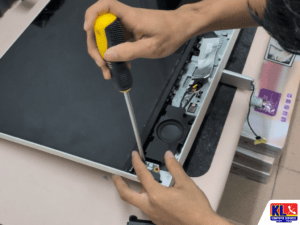
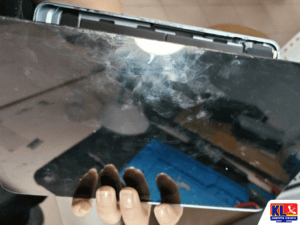
- ✓Don’t open the back of the AIO yourself without the right tools. Many models need the screen removed to reach the parts, and the display panel is easy to crack.
When It’s Time for a Service or Upgrade
Bring your all-in-one PC in for a check if any of these apply:
- ✓It still takes several minutes to boot, even after removing startup programs.
- ✓The fan is loud all the time, or the back of the screen gets very hot during light use.
- ✓The PC freezes, restarts or shuts down by itself.
- ✓You hear clicking, grinding or buzzing from inside the PC.
- ✓The AIO hasn’t been cleaned inside for more than two or three years.
In many cases, an internal cleaning, new thermal paste and an SSD upgrade can make a three to five year old AIO feel fast again, for much less than buying a new PC. Learn more about our desktop computer services and maintenance, or browse our guide to periodic maintenance servicing.
Diagnosis, Repair & Upgrade Turnaround
Diagnosis always comes first. We find out whether the problem is software, storage, cooling, memory or power, and explain your options before any work starts.
| Service | What’s Included | Est. Turnaround |
|---|---|---|
| AIO Diagnosis | Full check of storage health, temperatures, fan, RAM, Windows and power adapter, RM65 diagnostic fee | Same day |
| Software Cleanup & Tune-Up | Startup cleanup, Windows repair, driver updates and removing unwanted programs | Same day |
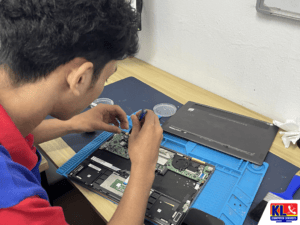
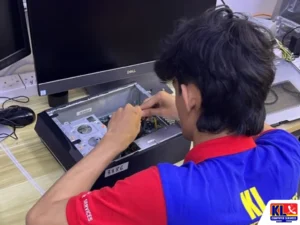
| Internal Cleaning & Thermal Paste | Opening the AIO, cleaning the fan and heatsink, replacing dried thermal paste | 1 to 2 days |
| SSD Upgrade | Replacing the hard disk with an SSD, with Windows and your files moved over | Same day to 2 days |
| RAM Upgrade | Adding or replacing memory, on models with upgradeable RAM slots | Same day, depending on parts |
| Fan, Drive or Adapter Replacement | Replacing a faulty fan, failed storage drive or power adapter with a compatible part | 1 to 5 days, depending on parts |
Why Customers Choose Us
When your all-in-one PC is running slow or hot, you want someone who finds the real cause and knows how to open an AIO safely.
- ✓Same-Day Diagnosis. Walk in without an appointment and know what’s slowing down your AIO before you leave.
- ✓4.9-Star Google Rating. Over 2,000 public Google reviews at our Setapak HQ alone, from real customers.
- ✓One of KL’s Established Independent Repair Centres. Serving Kuala Lumpur for 12 years.
- ✓Upgrade Before Replace. If an SSD, RAM upgrade or cleaning will fix it, we tell you, instead of pushing you to buy a new PC.
- ✓Careful With Your Screen. Our technicians open AIOs with the right tools to protect the display panel during repair.
- ✓Warranty on All Repairs. Every job backed by a warranty on labour and parts where applicable.
Visit Any of Our Branches
Drop in for a walk-in assessment, no appointment needed, at whichever branch is closest to you.
📍 Setapak (HQ)
KL Computer Services Setapak
First Floor, 36-1, Jalan 2/23A, Taman Danau Kota, 53300 Wilayah Persekutuan Kuala Lumpur
Mon-Fri: 9am-7.30pm | Sat-Sun: 9am-7pm
📍 Cheras Branch
KL Laptop Shop Cheras Pandan Jaya
First Floor, 34-1A, Jalan Pandan 2/1, Pandan Jaya, 55100 Kuala Lumpur
Mon-Fri: 9am-7pm | Sat: 10am-7pm | Sun: Closed
📍 Ampang Branch
KL Computer Shop Ampang Pandan Indah
First Floor, 13M Jalan Pandan Indah 4/2 Ampang, 55100 Wilayah Persekutuan Kuala Lumpur
Mon-Fri: 9am-7.30pm | Sat-Sun: 10am-7pm
📍 Jalan Klang Lama Branch
KL Computer Services Jalan Klang Lama
First Floor, 2-1 Jalan Indrahana 1, Off Jalan Kuchai Lama, 58200 Wilayah Persekutuan Kuala Lumpur
Mon-Fri: 9am-7.30pm | Sat-Sun: 10am-7pm
If you have several all-in-ones at the office or reception counter, our sister site KL Computer also handles onsite computer and laptop repair across KL and the Klang Valley.
Prefer us to come to you? Book our door-to-door onsite IT services, or browse our PC repair and services on klcomputerservices.com.my.
Frequently Asked Questions
Written by the KL Computer Services team, based on 12 years of hands-on laptop and desktop repair experience across Kuala Lumpur and Selangor. Read more on our About Us page or see what customers say on our Facebook page.