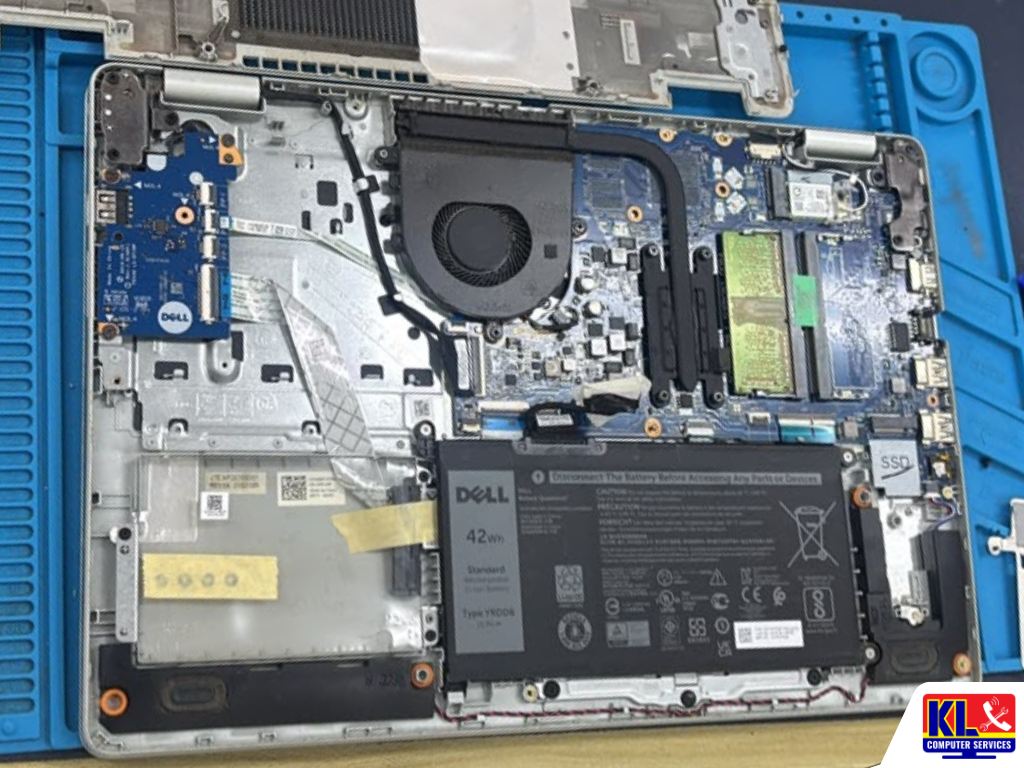
How Often Should You Replace Thermal Paste on a Laptop or Gaming PC?
Your laptop fan is louder than it used to be. The gaming PC that ran cool two years ago now hits high temperatures in the same game, or shuts itself off in the middle of a match. Many people blame the fan or the battery, but the cause can be a thin layer of paste between the processor and the heatsink that has simply worn out.
If you are searching for how often to replace thermal paste, laptop thermal paste replacement or laptop overheating repair KL, the honest answer is that there is no fixed date. As a rough guide, many laptops are worth checking every 2 to 4 years, and heavily used gaming laptops closer to 2 years. Desktop PCs with good paste often last 5 years or more. What matters more than the calendar is how your machine is behaving.
Thermal paste is the thin layer that carries heat from the processor or graphics chip into the heatsink. When it dries out or thins, heat stays trapped, the fan works harder and the processor slows itself down to protect itself. Our technicians see this regularly on student laptops, work laptops and gaming PCs around Kuala Lumpur, where the heat and humidity add to the load.
Replace on Symptoms, Not on a Date
Age alone does not prove the paste is bad. Rising temperatures and slower performance under the same workload are the real signs.
Dust Is Often the First Suspect
A clogged fan and vents cause the same symptoms. We clean and check before we touch the paste.
Laptops Need It Sooner
Thin bodies and cramped cooling make laptops age their paste faster than a roomy desktop case.
Do Not Repaste a Healthy Machine
Every repaste carries a small risk of damage, so we only recommend it when the machine needs it.
⚡ Laptop shutting down or running very hot right now? Save your work, shut it down and let it cool. Use it on a hard, flat surface and never on a bed or sofa. If it keeps overheating, bring it in before it gets worse.
Thermal Paste Replacement Intervals
These are rough guides, not rules. Heavy use, dust, heat and the quality of the original paste all change the answer. Treat the numbers below as a time to inspect, not a time to automatically repaste.
| Device | Typical Check Interval | What Changes It |
|---|---|---|
| Everyday laptop (browsing, Office, classes) | Around 3 to 4 years, or when it starts running hot | Light use and a clean fan can stretch this longer. |
| Gaming or editing laptop | Around 2 to 3 years | Heavy loads and constant heat age the paste faster. |
| Gaming PC or desktop with quality paste | Often 5 years or more | Needs a repaste sooner if you ever remove or reseat the cooler. |
| Any machine in a dusty room | Check more often | Dust blocks airflow and makes old paste look worse than it is. |
| Any machine after the cooler is removed | Replace the paste straight away | Paste should be renewed whenever the heatsink comes off. |
Our advice is simple. If your machine is more than two or three years old, runs hotter than before or is already open for another repair, it is a good time to have the cooling checked. If it runs cool and quiet, leave it alone.
Signs Your Thermal Paste Needs Replacing
Look for these signs, especially if several of them appear together.
Higher Temperatures Than Before
The same game or task now runs much hotter than it did when the machine was newer.
Louder Fans for Light Work
The fan spins up fast even when you are only browsing or typing.
Performance Drops Under Load
Games stutter and clock speeds fall after a few minutes. This is thermal throttling.
Sudden Shutdowns or Restarts
The machine switches off during heavy use as a protective measure.
Hot Palm Rests and Keyboard
Heat is spreading into the body instead of leaving through the vents.
Cracked or Dry Paste When Opened
If a technician opens it and finds dry, crumbly or pushed-aside paste, it is time.
These signs can also come from dust, a failing fan or a software problem. For more on overheating, see our guide on laptop overheating and random shutdowns.
Why Thermal Paste Wears Out
Thermal paste does not last forever, and heat is its biggest enemy. These are the main reasons it loses performance.
Drying out. Over time, the liquid part of the paste can dry, leaving a stiffer layer that carries heat less well.
Pump-out from heating and cooling. Each time the processor heats up and cools down, the metal surfaces expand and contract. This slowly pushes paste from the centre toward the edges, so the hottest spot ends up with the thinnest layer.
Constant heavy use. Gaming, editing and rendering keep the processor hot for long periods, which ages the paste faster than light office use.
Low-quality factory paste. Some budget laptops ship with paste that does not last as long as a good aftermarket product.
Dust building up. Dust is not paste, but it traps heat and makes a mild paste problem feel much worse.
Clean the Dust Before You Replace Anything
This is the step many people skip. A fan clogged with dust and blocked vents cause the same overheating, throttling and loud-fan symptoms as worn paste. Cleaning is cheaper, quicker and carries less risk, so we check it first.
- ✓Clean the vents and fan. Dust packed between the fan and heatsink fins is one of the most common causes of overheating in Malaysian homes and offices.
- ✓Check both fans spin freely. A fan that grinds or sticks needs replacing, not repasting.
- ✓Reset the power profile. Make sure the machine is not stuck in a mode that limits cooling or boosts power too hard.
- ✓Retest the temperatures. If cleaning brings them back down, the paste may not have been the problem.
Our laptop internal dust cleaning service is often the first step, and the thermal paste is renewed during the same opening when it needs it.
Laptop vs Gaming PC: What Is Different
Laptop
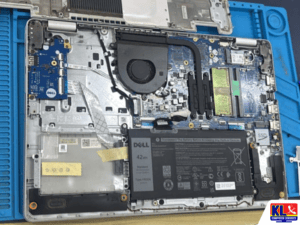
Usually needs full disassembly to reach the cooler. Screws are small, clips are fragile and cables are short, so a slip can cost more than the repaste saves.
Gaming PC
The cooler is easier to reach on a desktop. Paste lasts longer and the job is simpler, but mounting pressure and the right amount of paste still matter.
Thermal Pads
Graphics cards and some laptops use pads on memory and power parts. The pad thickness must match, or the heatsink may not touch the chip properly.
Liquid Metal
Some gaming laptops use liquid metal, which conducts electricity. It should never be swapped for ordinary paste without understanding the cooler design.
Opening a laptop can also affect the warranty on some models, so check your warranty terms first. If your machine is still under warranty, tell us before we open it.
How to Check Your Temperatures at Home
You can look at your own temperatures before deciding anything. This is safe and takes about 15 minutes.
- ✓Install a free monitoring tool. Programs like HWMonitor or HWiNFO show CPU and GPU temperatures.
- ✓Note the idle temperature. Check with only a few apps open and the laptop on a hard surface.
- ✓Run a demanding load for 15 minutes. A game or stress test works. Watch the highest temperature and whether clock speeds drop.
- ✓Compare against your own past results. There is no single number that fits every machine. A clear rise from the machine’s earlier readings, under the same conditions, is the sign that matters.
- ✓Retest after cleaning. If dust cleaning does not help, worn paste or a cooling fault is more likely.
Not sure how to read the results? Send us a screenshot, or bring the laptop in and we will check it for you.
What Not to Do
These are the mistakes we see most often from customers around Setapak, Cheras, Ampang and Kuchai Lama.
- ✓Do not repaste a machine that runs cool. If temperatures are normal, leave it alone. Each repaste carries a small risk of mistakes.
- ✓Do not use random paste or too much of it. A thick layer carries heat worse. A thin, even layer of a good paste is better than extra.
- ✓Do not swap liquid metal for ordinary paste. Liquid metal conducts electricity and can short a board if it escapes. Leave it to a technician.
- ✓Do not overlook the thermal pads. Wrong pad thickness can lift the heatsink off the chip and make temperatures worse.
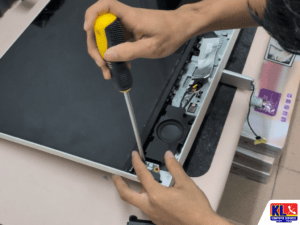
- ✓Do not force the laptop open. Clips snap, ribbon cables tear and hidden screws sit under stickers. A broken part can cost more than the repaste.
- ✓Do not ignore a very hot or shutting-down machine. Repeated overheating can damage the battery, the board and the drive over time.
Overheating Check & Thermal Paste Turnaround
Diagnosis comes first. We find out whether the cause is dust, the fan, the paste or something else, and explain your options before any repair work starts.
| Service | What’s Included | Est. Turnaround |
|---|---|---|
| Overheating Check | Temperature test, fan and vent check, power settings and cooling assessment | Same day |
| Dust & Fan Cleaning | Opening the laptop, removing dust from the fan and heatsink fins | Same day |
| Thermal Paste Replacement | Cleaning old paste, applying fresh paste and testing temperatures after | Same day to 1 day, depending on model |
| Gaming Laptop / Desktop Cooling Service | Paste, pad check and cooling test for heavier cooling systems | 1 to 3 days, depending on parts |
| Fan or Heatsink Replacement | Replacing a faulty fan or damaged heatsink with a compatible part | Same day to 5 days, depending on parts |
Turnaround times are estimates and depend on the model and parts on hand. We confirm the exact timing after the check.
Why Customers Choose Us
When your laptop or gaming PC overheats, you want someone who finds the real cause, not someone who repastes everything by default.
- ✓Same-Day Check. Walk in without an appointment and know what is wrong with your cooling before you leave.
- ✓4.9 Google Rating From Over 2,000 Reviews. Verified, public feedback from real customers, on our Setapak branch listing.
- ✓One of KL’s Established Independent Repair Centres. Serving Kuala Lumpur for 12 years.
- ✓Cleaning Before Repasting. If dust or a fan fault is the cause, we tell you, instead of repasting a machine that does not need it.
- ✓Warranty on All Repairs. Every job backed by a warranty on labour and parts where applicable.
Visit Any of Our Branches
Drop in for a walk-in assessment, no appointment needed, at whichever branch is closest to you.
📍 Setapak (HQ)
KL Computer Services Setapak
First Floor, 36-1, Jalan 2/23A, Taman Danau Kota, 53300 Wilayah Persekutuan Kuala Lumpur
Mon-Fri: 9am-7.30pm | Sat-Sun: 9am-7pm
📍 Cheras Branch
KL Laptop Shop Cheras Pandan Jaya
First Floor, 34-1A, Jalan Pandan 2/1, Pandan Jaya, 55100 Kuala Lumpur
Mon-Fri: 9am-7pm | Sat: 10am-7pm | Sun: Closed
📍 Ampang Branch
KL Computer Shop Ampang Pandan Indah
First Floor, 13M Jalan Pandan Indah 4/2 Ampang, 55100 Wilayah Persekutuan Kuala Lumpur
Mon-Fri: 9am-7.30pm | Sat-Sun: 10am-7pm
📍 Jalan Klang Lama Branch
KL Computer Services Jalan Klang Lama
First Floor, 2-1 Jalan Indrahana 1, Off Jalan Kuchai Lama, 58200 Wilayah Persekutuan Kuala Lumpur
Mon-Fri: 9am-7.30pm | Sat-Sun: 10am-7pm
For a full overview of what we repair, see our laptop repair services. If you are not sure whether an older laptop is worth the cost, read our guide on whether to repair or replace your laptop.
If it’s a business or office laptop overheating during meetings or daily work, our sister site KL Computer also handles onsite computer and laptop repair across KL and the Klang Valley.
Prefer to find a walk-in repair shop near your area? Browse our branch repair services on klcomputerservices.com.my.
Frequently Asked Questions
Written by the KL Computer Services team, based on 12 years of hands-on laptop and desktop repair experience across Kuala Lumpur and Selangor. Read more on our About Us page or see what customers say on our Facebook page.