
Why is My Laptop Overheating and Shutting Down? (And How to Fix It)
There is nothing more frustrating than working on an important document or being in the middle of a game, only for your screen to go black because your laptop decided to shut down unexpectedly. If the bottom of your machine feels like a frying pan and the fans are sounding like a jet engine, you are dealing with a severe thermal issue. When a laptop is shutting down randomly, it is usually triggering a built-in safety mechanism. Modern processors and graphics cards are designed to instantly cut power when they reach dangerously high temperatures (usually around 90°C to 105°C) to prevent the silicon from literally melting. If you are looking for a reliable laptop overheating fix, it helps to first understand what is choking your system’s cooling capabilities.
Top Reasons Your Laptop is Overheating
Laptops pack a lot of high-performance components into a very tight space, making airflow incredibly critical. Here are the most common culprits behind thermal throttling and sudden shutdowns:
- Clogged Vents and Heat Sinks: Over time, your laptop’s cooling fan sucks in dust, pet hair, and lint. This debris forms a thick “carpet” inside the exhaust vents, completely blocking hot air from escaping.
- Dried-Out Thermal Paste: The processor (CPU) and graphics card (GPU) transfer heat to the cooling system via a conductive gray compound called thermal paste. After 2 to 3 years, this paste dries out, hardens, and loses its ability to transfer heat effectively.
- Failing Cooling Fans: Mechanical fans can wear out. If your fan is making a grinding noise, rattling, or not spinning at all, the hot air has nowhere to go.
- Poor Placement: Using your laptop on a bed, pillow, or couch sinks the machine into the fabric, completely suffocating the bottom intake vents.
The Dangers of Ignoring an Overheating Laptop
Pushing an overheating laptop to its limits on a daily basis is a recipe for disaster. Frequent thermal shutdowns can lead to:
- Permanent Hardware Damage: Prolonged heat degrades internal components, potentially frying your motherboard or GPU.
- Battery Degradation: Lithium-ion batteries degrade incredibly fast when exposed to extreme heat, leading to drastically reduced battery life.
- Data Loss: Unexpected power cuts during read/write processes can corrupt your operating system or damage your hard drive.
The Ultimate Laptop Overheating Fixes
Here is how you can cool down your machine and stop it from randomly shutting down.
1. Improve Airflow and Placement (The Easy Fix)
Always use your laptop on a hard, flat surface like a wooden desk. If you need to use it on your lap, invest in a lap desk or a hard tray. Elevating the back of the laptop slightly can also dramatically improve the intake of cool air.
2. Clear Out the Dust
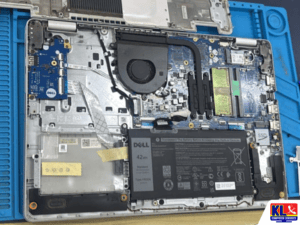
If you are comfortable opening the bottom panel of your laptop, use a can of compressed air to blow out the dust from the fans and the copper heat sink fins. Note: Always hold the fan blades still with a toothpick or cotton swab while using compressed air; letting them spin wildly can damage the fan bearing.
3. Invest in a Quality Cooling Pad
A laptop cooling pad with active fans can help push more cool air into the bottom vents of your machine. While this is a great band-aid solution, it usually won’t fix internal hardware issues like dried thermal paste.
4. Laptop Thermal Paste Replacement (The Permanent Fix)
If your laptop is more than two years old and blowing out dust doesn’t solve the random shutdowns, a laptop thermal paste replacement is almost certainly required. This process involves:
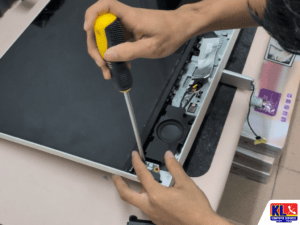
- Opening the laptop chassis and carefully removing the heat sink.
- Using isopropyl alcohol to clean the crusty, degraded factory paste off the CPU and GPU dies.
- Applying a fresh, high-quality thermal compound.
- Reassembling the cooling system.
Because this requires delicate disassembly and exposes the fragile core of your processor, it is highly recommended to have a professional IT technician handle the thermal repasting.
Keep Your Laptop Running Cool and Fast
Don’t let an overheating laptop disrupt your workflow or damage your expensive hardware. Routine maintenance and internal cleaning can easily double the lifespan of your machine. Whether you need a quick laptop tune-up, a professional thermal paste replacement, or comprehensive Desktop Computer Services & Maintenance for your entire office setup, keeping your hardware clean and cool is essential for long-term performance. If you are dealing with persistent overheating issues or hardware failures, explore our full range of IT and computer repair services to see how our expert technicians can help bring your device back to life.