Blue Screen on Windows? What the Most Common Stop Codes Mean
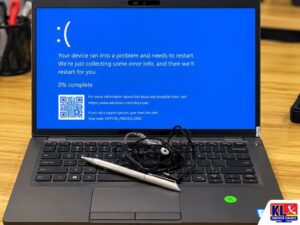
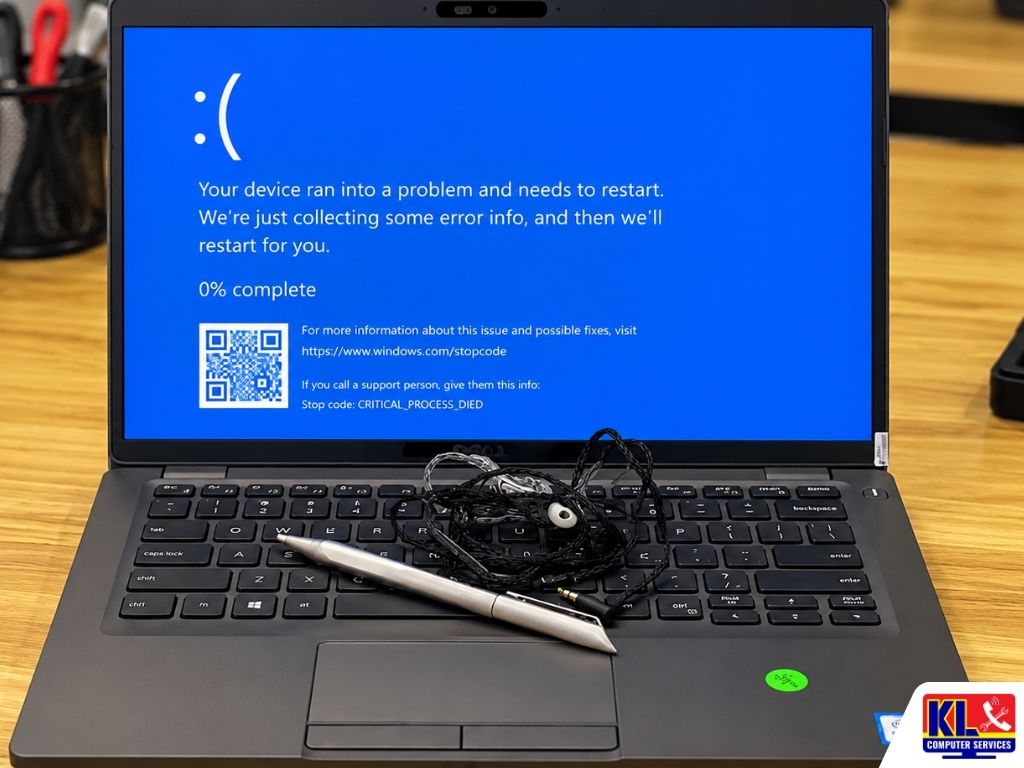
Blue screen Windows crashes always seem to come at the worst moment. You are in the middle of work, a game or a video call, and suddenly the screen turns blue with a sad face, a percentage counter and a line of capital letters like IRQL_NOT_LESS_OR_EQUAL or CRITICAL_PROCESS_DIED. The computer restarts, and you are left wondering whether it will happen again, and whether your files are safe.
If you are searching for a stop code meaning or blue screen repair KL, the good news is that the stop code on that screen is a real clue. It does not tell you the exact broken part, but it points to the area to check: a driver, the memory, the storage drive, or the hardware running too hot. This guide explains the codes we see most often, what they usually mean, and the safe steps you can try before bringing the computer in.
Our technicians fix blue screen Windows problems every week for students, home users and offices around Kuala Lumpur, and many can be fixed without replacing anything.
⚡ Blue screens happening again and again right now? Copy your important files to an external drive or cloud storage as soon as the computer starts normally. Repeated crashes can be an early sign of a failing drive, and backing up first protects you whatever the cause turns out to be.
Blue or Black? The New Windows 11 Crash Screen
In 2025, Microsoft replaced the famous blue screen on Windows 11 with a simpler black crash screen. Newer Windows 11 computers now show a black screen with a message that the device ran into a problem and needs to restart, without the sad face or QR code. Windows 10 and older Windows 11 versions still show the classic blue screen.
Only the colour changed. The black screen still shows the same stop code, so everything in this guide applies to both.
How to Read a Blue Screen
The screen only shows for a few seconds before the restart, so take a photo when you can. There are two parts worth noting.
- ✓The stop code. The words in capital letters joined by underscores, such as MEMORY_MANAGEMENT. This tells you the type of failure.
- ✓“What failed”, if shown. A file name ending in .sys, such as nvlddmkm.sys or ntfs.sys. This often names the exact driver involved, and is very useful.
- ✓When it happens and what changed. During games, at startup, after sleep, or right after an update or new driver. The pattern matters as much as the code.
The Most Common Blue Screen Windows Stop Codes
These are the stop codes we see most often at our branches. Each points to a likely area, not a guaranteed cause.
| Stop Code | What It Usually Means | Check First |
|---|---|---|
| CRITICAL_PROCESS_DIED | A core part of Windows stopped unexpectedly. Often damaged system files, a bad update or a failing drive. | System file check, recent updates, drive health |
| IRQL_NOT_LESS_OR_EQUAL and DRIVER_IRQL_NOT_LESS_OR_EQUAL | A driver tried to use memory it should not. Usually a faulty driver, sometimes faulty RAM. | The .sys file named on screen, recent driver updates, RAM test |
| MEMORY_MANAGEMENT | Windows found a serious memory error. Commonly faulty or mismatched RAM, sometimes a driver. | Windows Memory Diagnostic, any recent RAM upgrade |
| PAGE_FAULT_IN_NONPAGED_AREA | Windows looked for data in memory that was not there. Faulty RAM, a bad driver or a drive problem. | RAM test, recently installed software or security tools, drive health |
| SYSTEM_SERVICE_EXCEPTION | A system process hit an error it could not handle. Often graphics drivers or corrupted system files. | Graphics driver, system file check |
| KMODE_EXCEPTION_NOT_HANDLED and SYSTEM_THREAD_EXCEPTION_NOT_HANDLED | A driver made an error Windows could not recover from. Usually a driver problem. | The .sys file named on screen, roll back the latest driver |
| VIDEO_TDR_FAILURE | The graphics card stopped responding and Windows could not reset it. Graphics driver, overheating or a failing graphics chip. | Clean graphics driver install, temperatures |
| DPC_WATCHDOG_VIOLATION | A driver or device took too long to respond. Often storage drivers, SSD firmware or an external device. | SSD firmware, storage drivers, unplug USB devices |
| INACCESSIBLE_BOOT_DEVICE | Windows cannot reach the drive it starts from. A failing drive, a loose connection, a changed BIOS setting or a bad update. | Drive detection in BIOS, recent BIOS or update changes |
| UNEXPECTED_STORE_EXCEPTION and KERNEL_DATA_INPAGE_ERROR | Windows could not read data it needed from the drive or memory. Very often a failing drive. | Back up first, then drive health and RAM |
| NTFS_FILE_SYSTEM | A problem with the file system on the drive. Disk errors or a failing drive. | Back up first, then a disk check |
| WHEA_UNCORRECTABLE_ERROR and CLOCK_WATCHDOG_TIMEOUT | The hardware itself reported a fault it could not correct. Overheating, unstable overclocking, power supply or processor problems. | Temperatures, overclock settings, power supply |
If your code is not listed, search the exact stop code with any .sys file name shown, and look at what changed recently. Driver codes are usually the easiest to fix. Storage codes are the ones to take most seriously.
How to Fix a Blue Screen on Windows: First Steps
These steps are safe for most users and often solve the problem. Work through them in order.
- 1.Back up your important files. Do this first whenever the computer starts normally, especially if the code points to storage.
- 2.Unplug extra devices. Remove USB drives, docks, printers and other accessories, then see if the crashes stop. A faulty device or its driver can cause blue screens.
- 3.Undo the latest change. If it started after an update, go to Windows Update history and uninstall the latest update, or roll back the driver in Device Manager.
- 4.Update key drivers from the manufacturer. Graphics, chipset and storage drivers from your laptop or motherboard maker’s support page are usually the most stable choice.
- 5.Repair Windows system files. Open Command Prompt as administrator and run
sfc /scannow. If it reports problems it cannot fix, runDISM /Online /Cleanup-Image /RestoreHealthand then sfc again. - 6.Check temperatures and clean the vents. If crashes happen under load, heat may be the cause. Make sure fans and vents are not blocked with dust, and see our guide on when to replace thermal paste.
- 7.Remove any overclocking. If you or a previous owner overclocked the processor, RAM or graphics card, reset BIOS settings to default and test again.
Free Windows Tools to Find the Cause
Windows already includes tools that show what has been going wrong. None of them change your files.
| Tool | How to Open It | What It Shows |
|---|---|---|
| Reliability Monitor | Search “Reliability” in the Start menu, or run perfmon /rel |
A day-by-day timeline of crashes, updates and installs. The easiest way to see what changed before the blue screens started. |
| Windows Memory Diagnostic | Search “Windows Memory Diagnostic”, or run mdsched.exe |
Restarts and tests your RAM. Useful for MEMORY_MANAGEMENT and PAGE_FAULT codes. |
| Check Disk | Run chkdsk C: /scan in Command Prompt as administrator |
Scans the drive’s file system for errors. Back up before running deeper repair options. |
Windows also saves a small crash file, called a minidump, after each crash. It is one of the first things we read when a computer comes in.
Stuck in a Blue Screen Loop?
If it crashes every time Windows starts, use the built-in recovery mode.
- ✓Get into recovery. After two or three failed starts in a row, Windows usually opens Automatic Repair on its own. Choose Advanced options.
- ✓Try Safe Mode. Under Troubleshoot, Startup Settings, choose Safe Mode. Windows loads with basic drivers only. If it runs fine there, a driver or startup program is the likely cause.
- ✓Use System Restore. If a restore point exists, it returns Windows settings and drivers to an earlier date without touching your personal files.
- ✓Stop before “Reset this PC”. Resetting can remove your apps and, depending on the option, your files. If your data is not backed up, bring the computer in first.
If the computer will not start at all and your files matter, our sister site’s data recovery service can retrieve them before any repair or reinstall.
What Not to Do
These are the mistakes we see most often from customers around Setapak, Cheras, Ampang and Kuchai Lama.
- ✓Do not ignore repeated blue screens. One crash can be a one-off. Several in a week mean something is wrong, and a failing drive can get worse quickly.
- ✓Do not download “driver updater” or “PC fixer” tools from ads. Many install wrong drivers or unwanted software and can make the problem worse. Get drivers from the manufacturer’s own site.
- ✓Do not reinstall Windows before backing up. A reinstall can wipe your files. It also will not fix a hardware fault like bad RAM or a failing drive.
- ✓Do not mix random RAM sticks. Adding a stick with a different speed or type is a common cause of MEMORY_MANAGEMENT errors after an upgrade.
Blue Screen Repair Turnaround
Diagnosis comes first. We read the crash files, test the memory and drive, and check temperatures, then explain the cause and your options before any blue screen repair work starts.
| Service | What’s Included | Est. Turnaround |
|---|---|---|
| Blue Screen Diagnosis | Crash file reading, RAM and drive testing, temperature check | Same day to 1 day |
| Driver & Windows Repair | Fixing faulty drivers and system files, keeping your apps and data | Same day to 1 day |
| Windows Reinstall With Backup | Backing up your files, clean Windows install, drivers and file restore | 1 to 2 days |
| RAM Replacement | Replacing faulty or mismatched memory with a compatible stick | Same day to 2 days, depending on parts |
| Drive Replacement & Data Transfer | Replacing a failing drive with an SSD and moving your files across | 1 to 2 days |
| Motherboard or Graphics Repair | Board-level diagnosis and repair for hardware faults | 3 to 7 days, depending on parts |
Turnaround times are estimates and depend on the model and parts on hand. We confirm the exact timing and cost after the check.
Why Customers Choose Us
When your computer keeps crashing, you want someone who finds the real cause, not someone who reinstalls Windows by default and sends you home.
- ✓Same-Day Check. Walk in without an appointment and find out what is causing the blue screens.
- ✓4.9 Google Rating From Over 2,000 Reviews. Verified, public feedback from real customers on our Setapak branch listing.
- ✓One of KL’s Established Independent Repair Centres. Serving Kuala Lumpur for 12 years, with four branches across the city. See inside our workshop.
- ✓Your Data Comes First. We back up before any reinstall, and fix drivers, RAM, drives and overheating in one place.
Visit Any of Our Branches
Drop in for a walk-in assessment, no appointment needed, at whichever branch is closest to you. Bring a photo of the blue screen if you have one.
📍 Setapak (HQ)
KL Computer Services Setapak
First Floor, 36-1, Jalan 2/23A, Taman Danau Kota, 53300 Wilayah Persekutuan Kuala Lumpur
Mon-Fri: 9am-7.30pm | Sat-Sun: 9am-7pm
📍 Cheras Branch
KL Laptop Shop Cheras Pandan Jaya
First Floor, 34-1A, Jalan Pandan 2/1, Pandan Jaya, 55100 Kuala Lumpur
Mon-Fri: 9am-7pm | Sat: 10am-7pm | Sun: Closed
📍 Ampang Branch
KL Computer Shop Ampang Pandan Indah
First Floor, 13M Jalan Pandan Indah 4/2 Ampang, 55100 Wilayah Persekutuan Kuala Lumpur
Mon-Fri: 9am-7.30pm | Sat-Sun: 10am-7pm
📍 Jalan Klang Lama Branch
KL Computer Services Jalan Klang Lama
First Floor, 2-1 Jalan Indrahana 1, Off Jalan Kuchai Lama, 58200 Wilayah Persekutuan Kuala Lumpur
Mon-Fri: 9am-7.30pm | Sat-Sun: 10am-7pm
For a full overview of what we repair, see our laptop repair services and desktop repair and maintenance. If the crashes point to your drive, our hard disk repair service covers testing and replacement, and our desktop memory upgrade service helps if mismatched RAM is the cause.
Our sister site also covers Windows reinstall and software services and laptop SSD upgrades.
Several office PCs crashing after the same update? KL Computer provides business IT support across KL and the Klang Valley.
Frequently Asked Questions
Written by the KL Computer Services team, based on 12 years of hands-on laptop and desktop repair experience across Kuala Lumpur and Selangor. Read more on our About Us page or see what customers say on our Facebook page.