MacBook Battery Says “Service Recommended”? What It Means
You open System Settings and see it: Battery Health: Service Recommended. Or your MacBook runs out of power far sooner than it used to, and you wonder whether it’s time to spend money on a new battery.
If you’re searching for MacBook battery service recommended, MacBook battery replacement KL or MacBook battery health, you’re not alone. It’s one of the most common MacBook questions we get at our branches, and the answer is usually less alarming than the warning sounds.
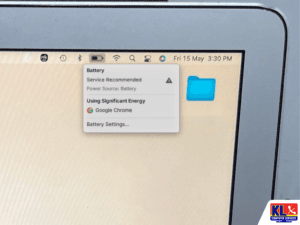
Apple describes it this way: “Service Recommended” means your battery’s ability to hold charge is less than when it was new, or that it isn’t functioning normally. Apple also says you can keep using your Mac. The real question is whether the shorter battery life is affecting how you work, and that decides whether it’s time for a replacement. This guide explains what the warning means, how to check your battery yourself, and how to decide.
It’s a Warning, Not a Failure
Your MacBook still works. The battery simply holds less charge than when new, so you’ll charge more often.
Check Cycle Count First
Most recent MacBooks are rated for 1,000 charge cycles. Your cycle count shows how much of the battery’s life is used up.
Swollen Battery Is Different
A trackpad that lifts, a bulging case or a lid that won’t close flat is a safety issue. Stop using the MacBook and get it checked.
Honest Assessment First
We test the battery before we recommend a replacement, so you only pay for it if you actually need it.
⚡ Check it now: On a recent macOS, open System Settings > Battery and look at Battery Health. To see your cycle count, hold the Option key, click the Apple menu, choose System Information, then open Power under Hardware.
Signs Your MacBook Battery Is Wearing Out
A worn MacBook battery shows up in daily use before the warning appears. Here is what each sign usually means.
Battery Drains Much Faster
Hours of use have shrunk compared with when it was new. The most common sign of a worn battery.
Shuts Down at 20% to 30%
The battery can no longer deliver power under load, so the MacBook switches off even when the percentage looks fine.
Service Recommended Message
macOS has measured that the battery’s capacity is below what it should be, or that it isn’t working normally.
Hot When Charging
A warm MacBook is normal. A very hot one, or one that runs hot on battery, deserves a technician’s check.
Won’t Charge Past a Level
Can be a worn battery, but also the charger, the cable, the port or Optimised Battery Charging pausing at 80%.
Trackpad or Case Lifting
A swollen battery pushing up from underneath. Stop charging and using the MacBook, and bring it in.
Why a MacBook Battery Reaches Service Recommended
When a MacBook shows Service Recommended, the cause usually falls into one of these categories.
Normal battery wear. Every MacBook battery is a consumable part. It ages with each charge cycle, and Apple designs it to keep up to 80% of its original capacity at its maximum cycle count. Many recent models are rated for 1,000 cycles, while older ones are rated for 300 or 500.
Age, even with light use. A battery also ages with time, not only with cycles. A MacBook that is three or four years old may be flagged even if it has few cycles.
Heat. Using the MacBook on a bed, in a hot car or on a blocked vent speeds up chemical ageing. Malaysia’s warm weather doesn’t help, especially for MacBooks kept plugged in all day.
Leaving it at 100% for long periods. Staying fully charged on the desk for months puts extra stress on the cells. Apple’s Battery Health Management, found under System Settings > Battery, is designed to slow this ageing.
A faulty battery. Sometimes the battery isn’t just old but defective, for example one cell failing early. This can cause sudden shutdowns or very uneven battery percentages.
A charging or power problem that looks like a battery problem. A weak charger, a damaged cable or a faulty charging port can stop the MacBook charging properly. A loose or dirty port is a common culprit, so it’s worth ruling out before buying a battery.
If your MacBook is also running hot or loud, read our guide on why your computer is starting slowly, which covers common heat and performance causes.
How to Check Your Battery Health and Cycle Count
Before deciding anything, take a few minutes to check these safe settings yourself.
- ✓Check Battery Health: On macOS Ventura and later, go to System Settings > Battery and read the Battery Health status. It shows Normal or Service Recommended.
- ✓Check the cycle count: Hold Option, click the Apple menu, choose System Information, select Power, and read the Cycle Count under Battery Information. Compare it with the limit for your model on Apple’s cycle count page.
- ✓Look at Maximum Capacity: Where your macOS shows it, a maximum capacity well below 80% means the battery has lost a lot of its original charge.
- ✓Try a different charger and cable: Use the correct wattage adapter. A weak or damaged charger can look like a battery fault.
- ✓Restart and update macOS: A software update or restart can refresh the battery readings. On Intel MacBooks, resetting the SMC can also help with charging problems.
- ✓Check for swelling: If the trackpad is lifting or the case is bulging, stop using the MacBook and don’t charge it. Read our article on a bloated laptop battery for the risks.
- ✓Don’t open the MacBook or use cheap unbranded batteries. MacBook batteries are glued in and sit next to the trackpad, so a poor repair can damage the machine or become a fire risk.
Do You Need to Replace It? How to Decide
Apple says you can keep using a MacBook that shows Service Recommended. Whether to replace the battery depends on how you use it.
Replace Now
Battery life no longer lasts through your day, the MacBook shuts down unexpectedly, or you rely on it away from a plug for work and study.
Can Wait
You mostly use the MacBook plugged in at a desk, the warning is new, and the battery still lasts long enough for your needs.
Urgent
The battery is swollen, the trackpad is lifting, the case is bulging or the MacBook gets unusually hot. Stop using it and bring it in.
Check Warranty First
If it is within Apple’s warranty, or you have AppleCare with a battery below 80% capacity, Apple may replace it at no charge.
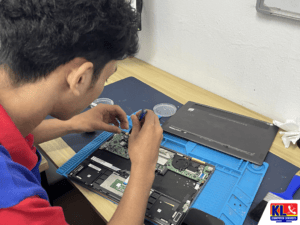
If your MacBook is older, the battery may not be the only issue. We can also check the storage, the cooling and the macOS version in the same visit, so you can decide whether a battery replacement is worth it or whether the MacBook needs more than a battery. Learn more about our MacBook Repair Services, or see our full laptop repair services.
Battery Diagnosis & Replacement Turnaround
Diagnosis always comes first. We test the battery, charger and charging port, and explain your options before any work starts.
| Service | What’s Included | Est. Turnaround |
|---|---|---|
| MacBook Battery Diagnosis | Cycle count, health and capacity check, charger and charging port test, RM65 diagnostic fee | Same day |
| Charger or Cable Replacement | Replacing a faulty or underpowered MacBook charger or cable with a suitable one | Same day |
| Charging Port Check or Repair | Cleaning or repairing a loose or damaged charging port, where that is the real cause | 1 to 3 days |
| MacBook Battery Replacement | Replacing the worn battery with a compatible part for your exact model, then testing charging and capacity | Same day to 3 days, depending on parts |
| Swollen Battery Replacement | Safely removing a swollen battery and checking the trackpad and case for damage | 1 to 5 days, depending on parts |
Turnaround depends on whether the battery for your model is in stock. We confirm the timeline after checking your MacBook.
Why Customers Choose Us
When your MacBook battery says Service Recommended, you want advice you can trust, not a battery you may not need.
- ✓Test Before We Replace. We check the battery, charger and port first, so a loose port or a weak charger isn’t mistaken for a worn battery.
- ✓4.9-Star Google Rating. Over 2,000 public Google reviews at our Setapak HQ alone, from real customers.
- ✓One of KL’s Established Independent Repair Centres. Serving Kuala Lumpur for 12 years, including Apple MacBook and laptop repairs.
- ✓Replace Only If Needed. If the battery still does the job, we tell you it can wait, instead of selling you a replacement today.
- ✓Clear About Parts. We tell you upfront which battery we are fitting for your model, so there are no surprises.
- ✓Warranty on All Repairs. Every job backed by a warranty on labour and parts where applicable.
Visit Any of Our Branches
Drop in with your MacBook for a walk-in battery check, no appointment needed, at whichever branch is closest to you.
📍 Setapak (HQ)
KL Computer Services Setapak
First Floor, 36-1, Jalan 2/23A, Taman Danau Kota, 53300 Wilayah Persekutuan Kuala Lumpur
Mon-Fri: 9am-7.30pm | Sat-Sun: 9am-7pm
📍 Cheras Branch
KL Laptop Shop Cheras Pandan Jaya
First Floor, 34-1A, Jalan Pandan 2/1, Pandan Jaya, 55100 Kuala Lumpur
Mon-Fri: 9am-7pm | Sat: 10am-7pm | Sun: Closed
📍 Ampang Branch
KL Computer Shop Ampang Pandan Indah
First Floor, 13M Jalan Pandan Indah 4/2 Ampang, 55100 Wilayah Persekutuan Kuala Lumpur
Mon-Fri: 9am-7.30pm | Sat-Sun: 10am-7pm
📍 Jalan Klang Lama Branch
KL Computer Services Jalan Klang Lama
First Floor, 2-1 Jalan Indrahana 1, Off Jalan Kuchai Lama, 58200 Wilayah Persekutuan Kuala Lumpur
Mon-Fri: 9am-7.30pm | Sat-Sun: 10am-7pm
If your MacBook is a work laptop, or you have several for staff, our sister site KL Computer also handles onsite computer and laptop repair across KL and the Klang Valley.
Prefer us to come to you? Book our door-to-door onsite IT services, or browse our MacBook repair services on klcomputerservices.com.my.
Frequently Asked Questions
Written by the KL Computer Services team, based on 12 years of hands-on laptop and MacBook repair experience across Kuala Lumpur and Selangor. Battery guidance follows Apple’s published support information. Read more on our About Us page or see what customers say on our Facebook page.