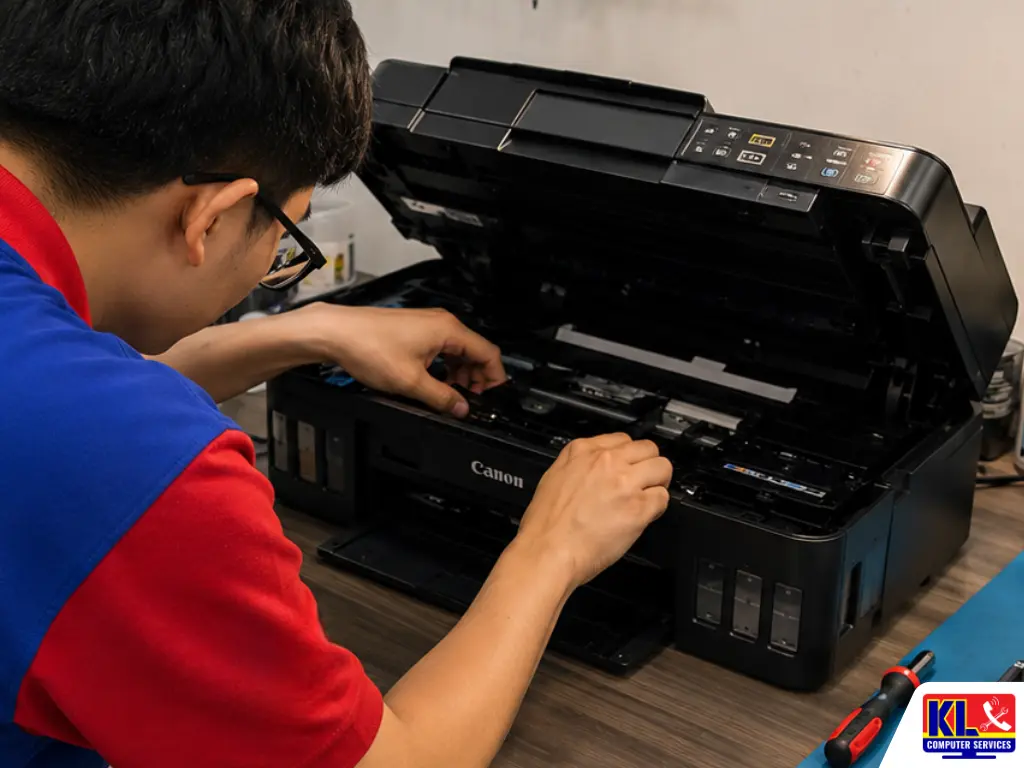
Printer Ink Absorber Full? Here’s What It Means
If your printer light is blinking non-stop, the cause is usually printer ink absorber full, not a broken machine. The absorber pad is a foam component that catches waste ink flushed out during cleaning cycles, and once the printer’s internal counter estimates it’s full, it locks all printing until the issue is addressed.
The Pad Collects Waste Ink
Every cleaning cycle sends a small amount of ink into the absorber pad, which builds up over time.
The Counter Is an Estimate
Printers track this internally with a software counter, not a physical sensor, so it can trigger sooner than expected.
Power Cuts Can Trigger It Faster
A sudden reboot from a power interruption can set off extra automatic cleaning cycles.
Idle Time Plays a Role Too
Printers left unused for long stretches often run auto-cleaning cycles that quietly fill the pad.
If you’re in Setapak, Wangsa Maju, Cheras, Pandan Jaya, Ampang, Pandan Indah, Kuchai Lama or anywhere in central KL and your printer has suddenly stopped printing, there’s a KL Computer Services branch within reach for a same-day assessment.
💡 Quick Answer: If your printer ink absorber is full, stop trying to force print jobs through. WhatsApp us a photo or video of the blink pattern for a quick assessment before assuming the printer needs replacing.
When This Is the Actual Cause
Not every printer error is the same. These are the most common scenarios where a full ink absorber pad is the real reason behind it. See our full printer repair service for a complete breakdown of what we cover, or read our guide on common printer problems and fixes.
Non-Stop Blinking Light
A repeating blink pattern with no printed error message on screen.
Print Jobs Won’t Go Through
Documents sit stuck in the queue or fail immediately after sending.
Error After a Power Cut
The blinking started right after a sudden shutdown or restart.
Older Printer, Never Serviced
Years of regular use without ever having the internal pad checked.
What Not to Do When the Light Starts Blinking
What you do right after noticing the blinking light matters more than people expect. These are the most common mistakes that turn a simple fix into a bigger repair.
- ✕Don’t keep force-printing — repeatedly resending print jobs won’t clear the error and can push more ink into an already full pad.
- ✕Don’t ignore the blinking light — leaving it unresolved risks ink overflowing and reaching internal electronics.
- ✕Don’t unplug and replug repeatedly — repeated reboots can trigger extra automatic cleaning cycles, worsening the issue.
- ✕Don’t attempt a DIY pad swap without guidance — incorrect handling can damage surrounding components or spill ink onto the circuit board.
- ✕Don’t assume it needs replacing — most cases only need the absorber pad replaced and the counter reset.
What to Do Instead
A few simple steps right after noticing the blinking light can significantly improve the outcome and keep repair costs down.
- ✓Stop attempting to print — avoid repeated print attempts once the error appears to prevent further ink buildup.
- ✓Note the blink pattern — different blink sequences point to different issues, so noting how it blinks helps a technician diagnose faster.
- ✓Check how long it’s been used — knowing whether the printer has ever been serviced helps assess the likely cause.
- ✓Bring it in as soon as possible — the sooner it’s checked, the lower the risk of ink damaging internal parts.
- ✓Get a diagnosis before any repair decision — so you know exactly what’s wrong before any work starts.
Printer Repair Service & Price
Every job starts with a transparent, professional diagnosis. No repair work begins until you understand what’s wrong and approve the price.
| Service | What’s Included | Est. Turnaround |
|---|---|---|
| Error Diagnosis | Assessment of the blink pattern and error to confirm the exact cause | Same day |
| Ink Absorber Pad Replacement | Replacement of the saturated pad and reset of the internal counter | 1–3 days |
| Printhead Cleaning & Testing | Clearing dried ink or debris from the printhead nozzles | 1–3 days |
| General Printer Servicing | Full internal check-up for printers that have never been serviced | 1–3 days |
Exact repair pricing depends on the printer brand, model, and parts needed. WhatsApp us your issue for a clearer price estimate before you visit.
Printer Brands & Models We Service
Ink absorber issues can happen on almost any inkjet printer brand. We service and repair:
Canon Printers
Including PIXMA series models with blinking indicator errors.
Epson Printers
Ink tank and cartridge models with waste ink pad errors.
HP Printers
Home and office inkjet models with printing lockout errors.
Brother Printers
Inkjet and all-in-one models affected by full waste ink tanks.
Office Multifunction Printers
Shared office units with heavier daily print and scan volume.
Home Inkjet Printers
Compact home models. WhatsApp us your model to confirm.
Our 4 Branches — Get Your Printer Checked Nearby
No matter where you are in KL, one of our branches is close by for a same-day printer error assessment. Drop in for a walk-in assessment — no appointment needed. You can also WhatsApp us first for a faster check-in.
KL Computer Setapak
First Floor, 36-1, Jalan 2/23a, Taman Danau Kota, 53300 KL
Mon–Fri: 9am–8pm | Sat–Sun: 9am–7pm
KL Computer Jalan Klang Lama
First Floor, 2-1, Jalan Indrahana 1, Off Jalan Kuchai Lama, 58200 KL
Mon–Fri: 9am–8pm | Sat–Sun: 10am–7pm
KL Computer Cheras Pandan Jaya
First Floor, 34-1A, Jalan Pandan 2/1, Pandan Jaya, 55100 KL
Mon–Fri: 9am–7pm | Sat: 10am–7pm | Sun: Closed
KL Computer Ampang Pandan Indah
First Floor, 13M, Jalan Pandan Indah 4/2, Ampang, 55100 KL
Mon–Fri: 9am–8pm | Sat–Sun: 10am–7pm
Why Choose KL Computer Services for Printer Repair
Plenty of shops will tell you to just buy a new printer. Here’s what makes the difference when it’s actually a simple fix. Check our FAQ page.
- ✓Diagnosis Before Any Repair — You know exactly what’s wrong before any work begins.
- ✓1,200+ Five-Star Google Reviews — Verified, public feedback from real customers.
- ✓13+ Years in Business Since 2012 — One of KL’s most established independent repair centres.
- ✓Handles All Major Printer Brands — Canon, Epson, HP, Brother, and more.
- ✓Pad Replacement & Counter Reset Done Right — No shortcuts that leave the error coming back.
- ✓Warranty on All Repairs — Every job backed by a warranty on both labour and parts where applicable.
How Our Printer Repair Process Works
From the moment you notice the blinking light to the moment you’re printing again, here’s what to expect:
Contact Us First
WhatsApp or call us, send a photo or video of the blink pattern, and stop trying to force print in the meantime.
Drop In or We Come to You
Walk into any of our 4 branches, or request an on-site technician if the printer is hard to move.
Thorough Diagnosis & Your Approval
Full assessment of the blink pattern and internal counter, a clear explanation of the cause, firm quote, zero work done until you say go.
Repair & Testing
Pad replacement or printhead cleaning as needed, followed by a full test print before handover.
Collect with Confidence
Pick up your working printer along with a service receipt and tips to avoid the issue coming back.